
Safeguard your data
The encryption add-on lets you create encryption folders using any storage linked to your odrive. You can turn vanilla storage into strongly encrypted, secure cloud storage.
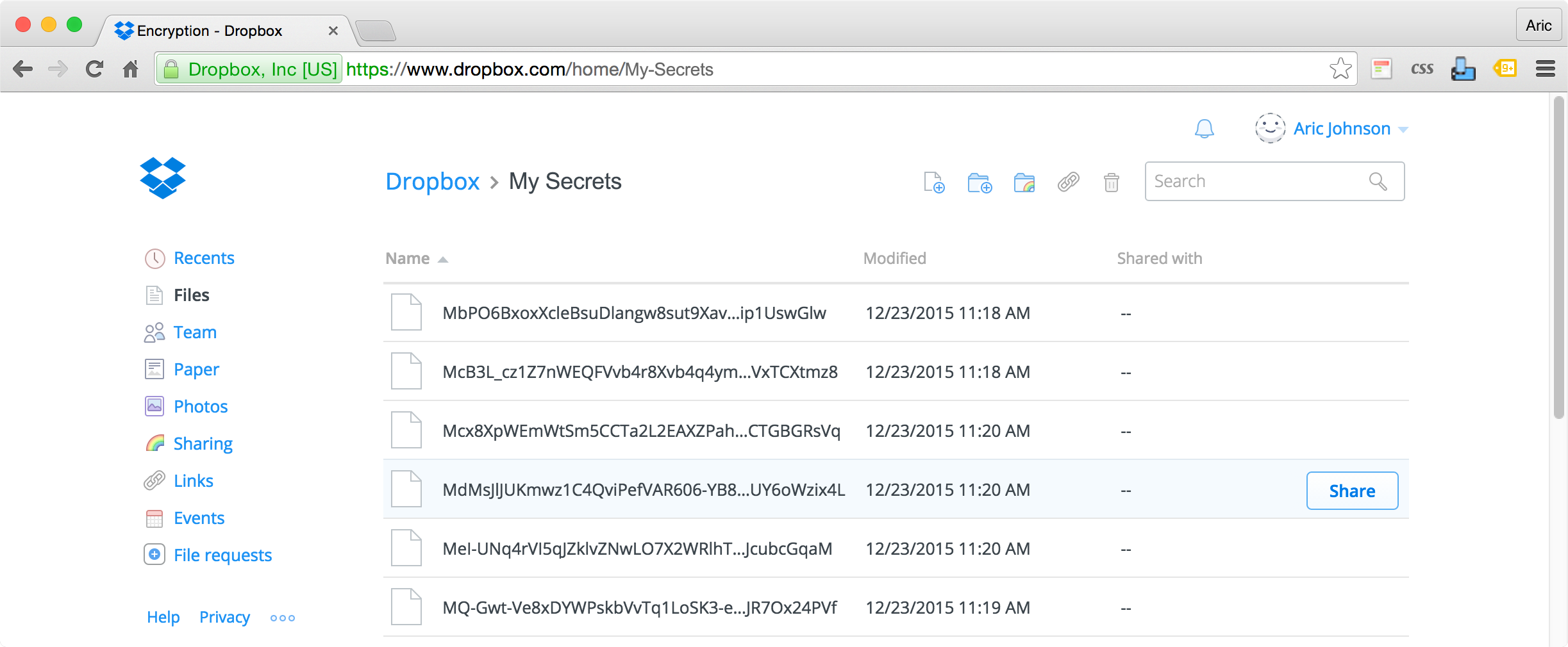
Effortless encryption
Encryption folders live on your computer. They work exactly like other sync folders except everything is automatically encrypted before data leave your computer.
The cloud only sees and stores your encrypted information. You can easily protect your privacy without sacrificing convenience.
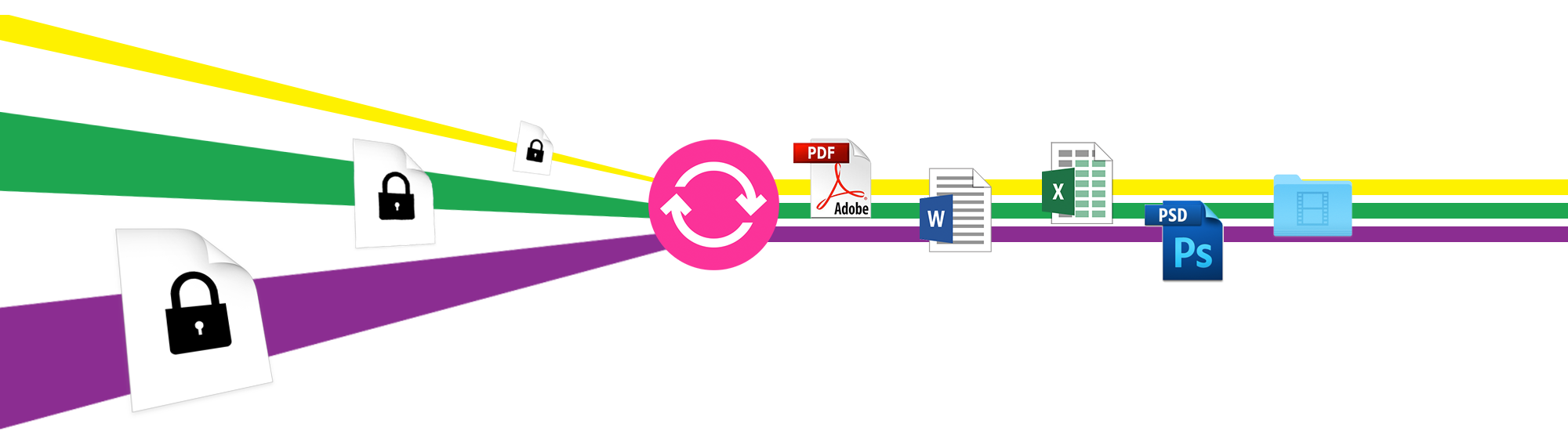
Zero-knowledge encryption
Encrypted data is only as secure as the keys used to encrypt them. Anyone with your encryption keys can decrypt and read your files. For true privacy protection, no one can have any knowledge of your keys.
The encryption add-on uses your secret passphrase to encrypt your files. odrive has zero-knowledge of your secret passphrase. Only you know the secret passphrase. Only you can decrypt your data. The encryption add-on lets you stay in complete control of your privacy.
The encryption add-on uses your secret passphrase to encrypt your files. odrive has zero-knowledge of your secret passphrase. Only you know the secret passphrase. Only you can decrypt your data. The encryption add-on lets you stay in complete control of your privacy.
Proven technology
The encryption add-on uses AES Encryption, which is the encryption standard established by the U.S. National Institute of Standards and Technology (NIST). It is the US Government standard for protecting the most sensitive data. It is also the worldwide standard for encryption.

Protect your business
Cloud storage is a fantastic business tool. It can streamline workflow operations and improve business agility. But without proper safeguards, it can also be a liability. Every business should be encrypting its employee and customer records at the minimum. The encryption add-on makes cloud storage safe and productive for business.

Usage Guide
How to set up encryption folders
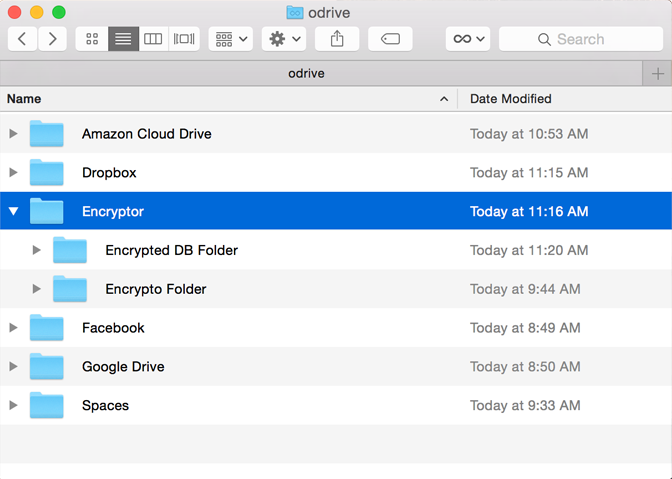
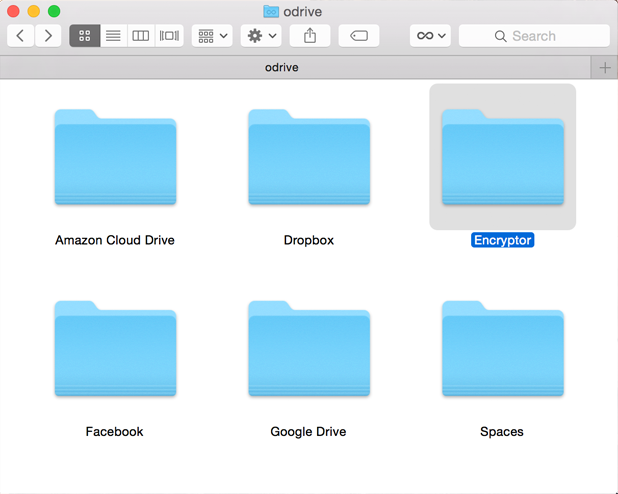
Encryption will create the new encryption folder inside the "Encryptor" folder. You can set up as many encrypted folders as you need, and each encryption folder can use a different secret passphrase.
 How to set the secret passphrase
 How to encrypt files
How to recover your secret passphrase
Do you have any documentation I can look at for encryption?
How to encrypt files
How to recover your secret passphrase
Do you have any documentation I can look at for encryption?
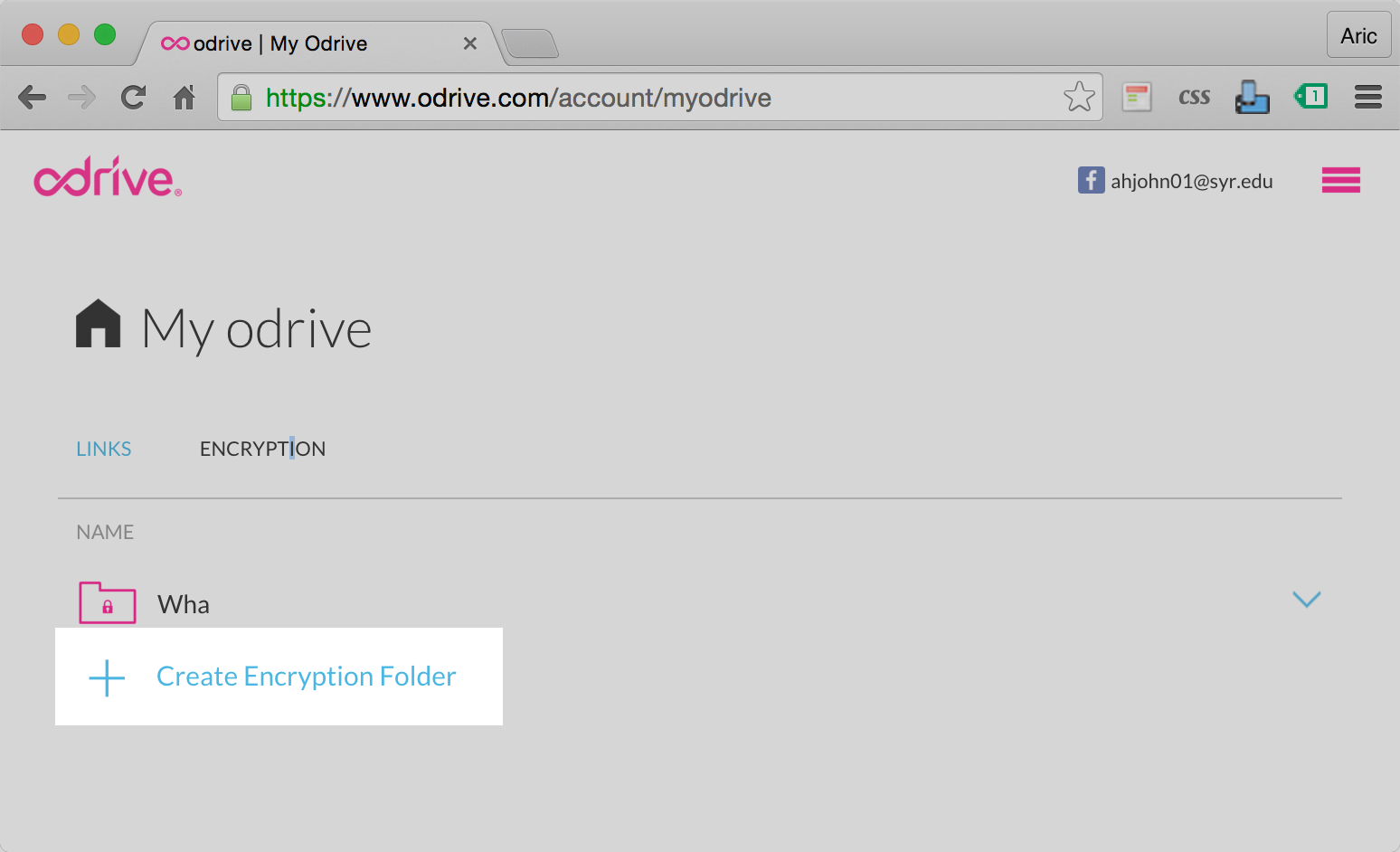
- Sign into the odrive website.
- Click "Encryption" to manage your encryption folders.
- Click "add encryption folder" to open the setup form.
- Provide a distinct name for the folder.
- Choose the storage location. The location must be empty. Encryption will ignore any existing files.
Encryption will create the new encryption folder inside the "Encryptor" folder. You can set up as many encrypted folders as you need, and each encryption folder can use a different secret passphrase.
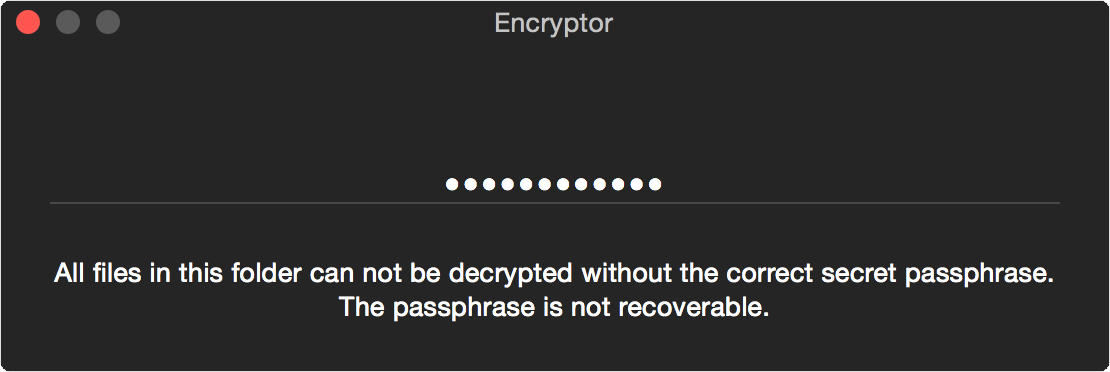
Each encryption folder has a secret passphrase. The first time you access an encryption folder on your computer, odrive will ask you to set the secret passphrase. If this is the first time, you can use any secret passphrase. If the passphrase is already set, you must enter the correct secret passphrase to continue.
Encryption happens automatically on your computer. You can find your encryption folders in the "Encryptor" folder. As you access files and make changes, encryption automatically decrypts information coming from the cloud and encrypts data going to the cloud.
With zero-knowledge encryption, no one has your secret passphrase. However, you may be able to recover the secret passphrase from your computer keychain.
Just open the keychain application on your computer to retrieve the passphrase. If you are unable to find it in your keychain, we will unfortunately not
be able to help you since there is no possible way for us to determine what passphrase you used.
You can view our encryption documentation.
We also have a short encryption video which walks through setting up your encrypted folder.
FAQs
What is the encryption process?
Encryption Steps:
Decryption Steps:
The encryption process is designed to eliminate all information about the original plaintext in the resulting ciphertext.
How are encryption keys generated?
- Generate a random 64-bit salt (S)
- Generate a 128-bit key (K) using PBKDF2 with S and the user's passphrase (P), 5000 iterations, and HMAC-SHA256 for PRF
- Generate a random 128-bit initialization vector (IV)
- Compute a hash (H) of the file data using SHA256
- Plaintext (PT) is: (file data + H + PKCS #7 padding to the next multiple of 16 bytes)
- Generate the ciphertext (CT) using AES-CBC to encrypt PT using the K and IV
- Get the 8-bit internal odrive Encryption version designation (V)
- Write to output file V+S+IV+CT
Decryption Steps:
- Read V, S, and IV from the beginning of the encrypted file
- Derive K using S and P
- Decrypt the CT using K and IV to plaintext (PT)
- Unpad the PT
- Strip H from the end of PT
- Calculate new hash (H2) of the resulting PT and compare to H
The encryption process is designed to eliminate all information about the original plaintext in the resulting ciphertext.
Encryption keys are produced using PBKDF2 with the secret passphrase and the salt as input. Each file has a unique key.
Can I share encrypted files?
Encrypted files can be shared using spaces. Simply create an encryption folder using the space as the location.
NOTE: Weblink sharing currently does not currently support encrypted files.
Are my files encrypted on disk?
NOTE: Weblink sharing currently does not currently support encrypted files.
Encryption protects your content in cloud storage. It does not protect your data on local storage. However, you can unsync files to turn them into empty placeholder files for protection.
What if someone hacks my cloud storage account?
If you are using encryption, your files remain encrypted. The hacker will only see encrypted files names and encrypted file content.
What if someone hacks my odrive account?
odrive does not have any encryption information. If you are using encryption, your files remain encrypted.
What if someone hacks my computer?
Encryption protects your data at rest in the cloud. It does not encrypt the files on your computer. Encryption does not protect your computer from hackers.
Can I access encrypted files on the web?
No. Encryption currently requires the desktop sync client. Web access to encrypted information will be available in the future.
 my odrive